From the free course Computer Applications and Information Technology on Lykke
Word Processing and Document Development
Key concepts: Academic Paper Formatting · Document Lifecycle · Business Letters · Editing Tools · Formatting Standards
In-depth training on creating professional and academic documents using Microsoft Word and Google Docs.
Word Processing and Document Development
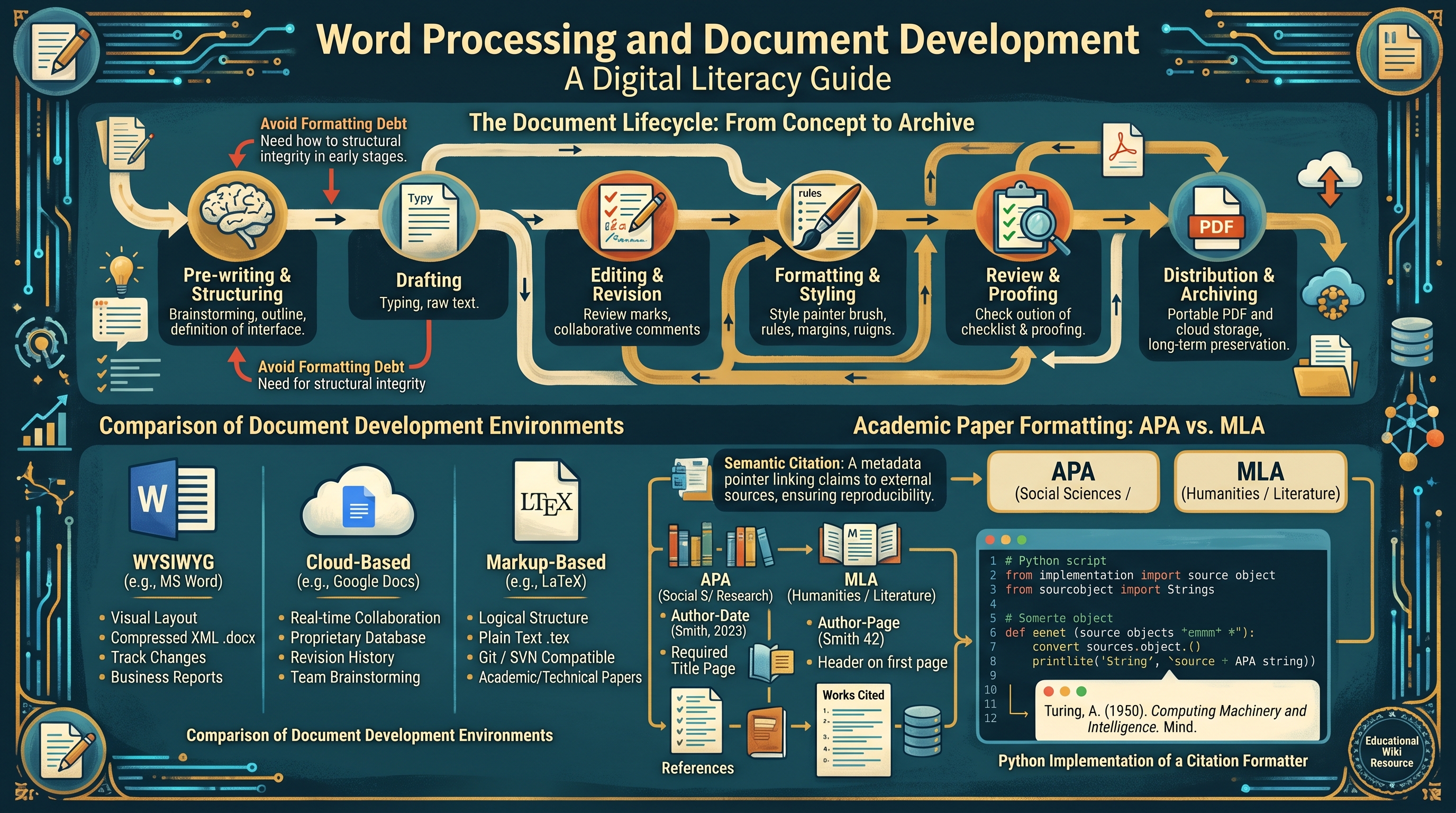
Word processing is the foundational pillar of modern digital literacy, representing the transition from the mechanical constraints of the typewriter to the fluid, non-linear environment of digital text manipulation. At its core, a word processor is not merely a "digital typewriter" but a sophisticated software environment designed to manage the Document Lifecycle—a multi-stage process involving the creation, editing, formatting, and distribution of structured information.
To understand word processing at an expert level, one must view a document as a hierarchical data structure. Whether you are drafting a 500-page dissertation in LaTeX or a one-page business memo in Microsoft Word, you are interacting with a system that balances human-readable aesthetics with machine-readable metadata. This article explores the technical mechanics, professional standards, and algorithmic underpinnings of modern document development.
The Document Lifecycle: From Concept to Archive
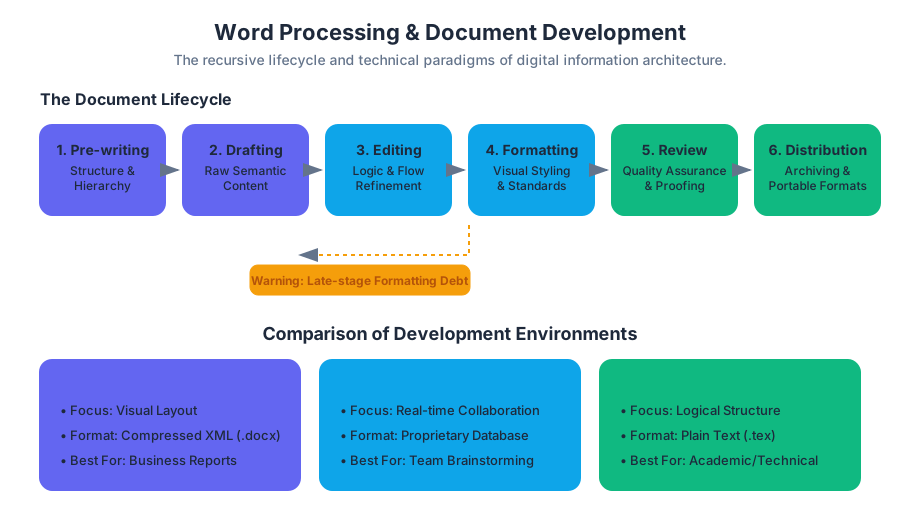
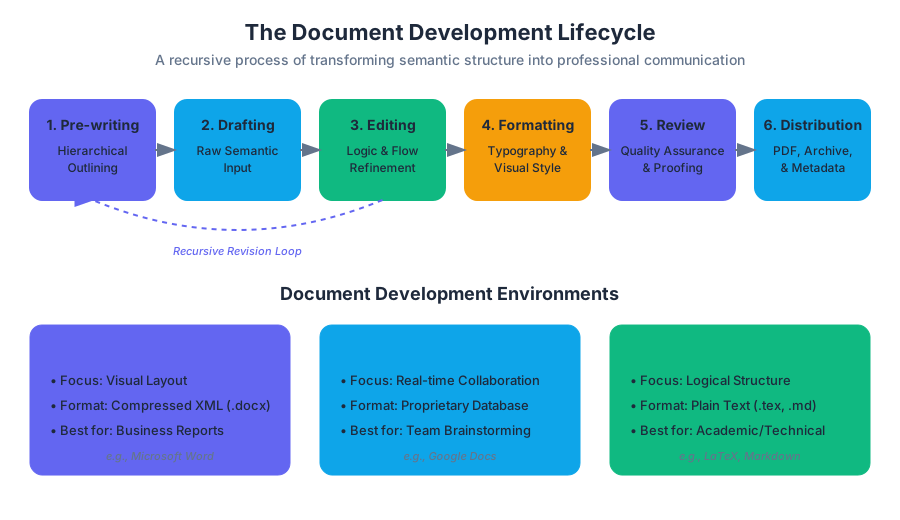
The development of a professional document is rarely a linear path. It follows a recursive lifecycle where each stage informs the next. A failure to respect this lifecycle often results in "formatting debt," where late-stage changes become exponentially difficult to implement because the underlying structure was poorly defined.
- Pre-writing and Structuring: Defining the document's purpose, audience, and hierarchical outline.
- Drafting: The raw input of content, focusing on semantic meaning rather than visual appearance.
- Editing and Revision: Refining the logic, flow, and accuracy of the text. This often involves collaboration tools and version control.
- Formatting and Styling: Applying visual standards (margins, typography, spacing) to the semantic structure.
- Review and Proofing: Final quality assurance, checking for grammatical errors and adherence to style guides.
- Distribution and Archiving: Converting the document into a portable format (like PDF) or a markup language for long-term storage.
Comparison of Document Development Environments
| Feature | WYSIWYG (e.g., MS Word) | Cloud-Based (e.g., Google Docs) | Markup-Based (e.g., LaTeX) |
|---|---|---|---|
| Primary Focus | Visual Layout | Real-time Collaboration | Logical Structure |
| Storage Format | Compressed XML (.docx) | Proprietary Database | Plain Text (.tex) |
| Version Control | Track Changes (Internal) | Revision History | Git / SVN Compatible |
| Learning Curve | Low (Intuitive) | Very Low | High (Code-based) |
| Best For | Business Reports | Team Brainstorming | Academic/Technical Papers |
Academic Paper Formatting: The Logic of Citations
In academia, formatting is not a matter of personal preference; it is a rigorous system of information architecture designed to ensure transparency and reproducibility. The two primary standards—APA (American Psychological Association) and MLA (Modern Language Association)—serve different epistemological needs.
Definition: Semantic Citation A citation is a pointer in a document's metadata that links a claim to an external data source. Formatting standards define the "API" for these pointers, ensuring that any reader can resolve the pointer to the original source without ambiguity.
APA vs. MLA: A Technical Comparison
| Requirement | APA (7th Edition) | MLA (9th Edition) |
|---|---|---|
| Focus | Social Sciences / Research | Humanities / Literature |
| In-text Style | Author-Date (Smith, 2023) | Author-Page (Smith 42) |
| Title Page | Required (Student & Professional) | Not required (Header on first page) |
| Heading Style | Centered, Bold, Title Case | Left-aligned, No specific bolding |
| Reference List | "References" | "Works Cited" |
To automate these standards, modern word processors use citation managers that treat sources as objects in a database.
First Code Block: Python Implementation of a Citation Formatter
This script demonstrates how a word processor might programmatically convert a source object into a formatted APA string.
class Source:
    def __init__(self, author_last, author_first, year, title, publisher):
        self.author_last = author_last
        self.author_first = author_first
        self.year = year
        self.title = title
        self.publisher = publisher

    def to_apa(self):
        """Returns a string formatted in APA 7th Edition style."""
        # Format: Last, F. (Year). Title. Publisher.
        initial = self.author_first[0].upper()
        return f"{self.author_last}, {initial}. ({self.year}). *{self.title}*. {self.publisher}."

# Example Usage
paper_source = Source("Turing", "Alan", 1950, "Computing Machinery and Intelligence", "Mind")
print(paper_source.to_apa())
# Output: Turing, A. (1950). *Computing Machinery and Intelligence*. Mind.
Business Communication and Document Standards
In a corporate environment, documents are extensions of a brand's identity. Business Letters and Formal Reports rely on standardized layouts to convey professionalism and facilitate rapid scanning by executives.
The Anatomy of a Business Letter
A professional business letter typically follows the Block Style, where all text is left-aligned and paragraphs are not indented, separated instead by double spacing.
- Sender's Address: Contact information of the author.
- Date: The formal record of transmission.
- Inside Address: The recipient's full name and professional address.
- Salutation: A formal greeting (e.g., "Dear Mr. Henderson:").
- Body: The core message, usually structured into an opening (purpose), middle (detail), and closing (call to action).
- Complimentary Close: A professional sign-off (e.g., "Sincerely,").
- Signature Block: The printed name and title of the sender.
Professional Document Types and Their Parameters
| Document Type | Purpose | Key Formatting Constraint |
|---|---|---|
| Memo | Internal communication | No signature block; uses "To/From/Date/Subject" header. |
| Executive Summary | High-level overview | Must be concise; usually limited to one page. |
| White Paper | Authoritative report | Heavy use of data visualization and technical citations. |
| Press Release | Public announcement | Includes "FOR IMMEDIATE RELEASE" and contact info. |
Editing Tools and Computational Linguistics
Modern word processors are equipped with "Intelligent Editing" suites. These tools do not just check for typos; they utilize natural language processing (NLP) to analyze syntax and semantics.
Spell-check and the Levenshtein Distance
When a word processor suggests a correction for a misspelled word, it often calculates the Levenshtein Distance (or "Edit Distance") between the typed string and words in its dictionary.
Theorem: Levenshtein Distance The distance between two strings $a, b$ is the minimum number of single-character edits (insertions, deletions, or substitutions) required to change $a$ into $b$.
Second Code Block: Mathematical Derivation of Edit Distance
The following pseudocode represents the dynamic programming approach to calculating the cost of transforming string s1 into s2.
Function LevenshteinDistance(s1, s2):
    m = length(s1)
    n = length(s2)
    d = matrix[0..m, 0..n]

    for i from 0 to m: d[i, 0] = i
    for j from 0 to n: d[0, j] = j

    for j from 1 to n:
        for i from 1 to m:
            if s1[i] == s2[j]:
                substitutionCost = 0
            else:
                substitutionCost = 1

            d[i, j] = minimum(
                d[i-1, j] + 1,           // deletion
                d[i, j-1] + 1,           // insertion
                d[i-1, j-1] + substitutionCost // substitution
            )
    return d[m, n]
Formatting Standards: The Move to XML
Historically, word processing files (like the old .doc format) were binary blobs that were difficult to parse without the original software. Modern standards, such as Office Open XML (.docx) and OpenDocument Format (.odt), are actually compressed ZIP archives containing multiple XML files.
This shift allows for better data recovery and interoperability. If you rename a .docx file to .zip and open it, you will find a file named document.xml which contains the actual text and formatting tags.
Third Code Block: LaTeX - The Programmatic Alternative
While Word uses a GUI, LaTeX uses markup. This example shows how a professional document is defined through code, ensuring perfect consistency across different machines.
\documentclass[12pt, letterpaper]{article}
\usepackage[utf8]{inputenc}
\usepackage{geometry}
 \geometry{margin=1in}

\title{The Impact of Word Processing on Digital Literacy}
\author{Professor of Information Systems}
\date{\today}

\begin{document}

\maketitle

\section{Introduction}
Word processing has evolved from simple text entry to complex document development.
This document demonstrates the power of \textbf{typesetting} over simple word processing.

\subsection{Key Advantages}
\begin{itemize}
    \item Separation of content and style.
    \item Superior handling of mathematical equations: $E = mc^2$.
    \item Automated cross-referencing and indexing.
\end{itemize}

\end{document}
Advanced Formatting: Styles and Templates
The most common mistake among novice users is "Direct Formatting"—applying bold, italics, or font changes directly to text. Experts use Styles.
A Style is a named collection of formatting attributes. By applying a "Heading 1" style rather than manually increasing the font size and bolding a line, you create a semantic map of the document. This map allows the software to automatically generate a Table of Contents (TOC) and enables screen readers to navigate the document for users with visual impairments.
Fourth Code Block: WordprocessingML (XML) Snippet
This is what a "Heading 1" style looks like under the hood in a .docx file's XML structure.
<w:p>
  <w:pPr>
    <w:pStyle w:val="Heading1"/>
    <w:jc w:val="center"/>
  </w:pPr>
  <w:r>
    <w:t>Chapter 1: The Evolution of Text</w:t>
  </w:r>
</w:p>
Common Pitfalls in Document Development
- Manual Spacing: Using the
Enterkey to create space between paragraphs or theSpacebarto align text. This breaks when the font size or margin changes. Use Paragraph Spacing and Tabs/Indents instead. - Version Chaos: Saving files as
Report_v1.docx,Report_v2_FINAL.docx,Report_v2_FINAL_REALLY.docx. Use built-in Track Changes or a dedicated version control system. - Ignoring Accessibility: Failing to use alt-text for images or proper heading hierarchies. This makes documents unusable for colleagues using assistive technologies.
- Over-formatting: Using too many fonts or colors. Professional documents typically limit themselves to two font families (one serif for body text, one sans-serif for headings).
Source Materials
Study Computer Applications and Information Technology on Lykke
This course page is free to open: signed out, you can read its first two sections, and signing in, on any plan, opens the rest. The free Lykke Chrome extension syncs your own Canvas courses, so ChatGPT, Claude and Muse can answer from your classes and deadlines. It only reads Canvas.
Add the free extensionSign in to open every sectionAll sections of Computer Applications and Information Technology · Browse more course pages