What it does on Canvas
“Study this with Lykke”, on the page itself
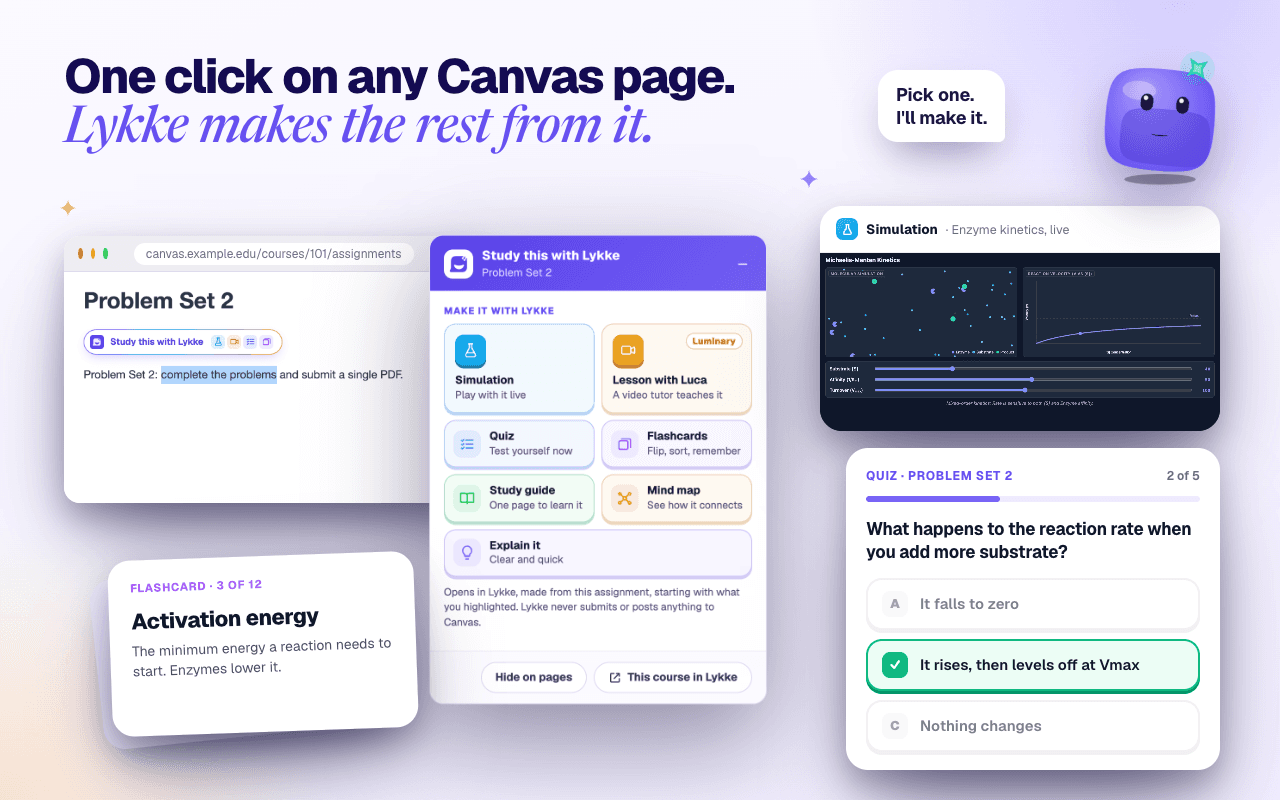
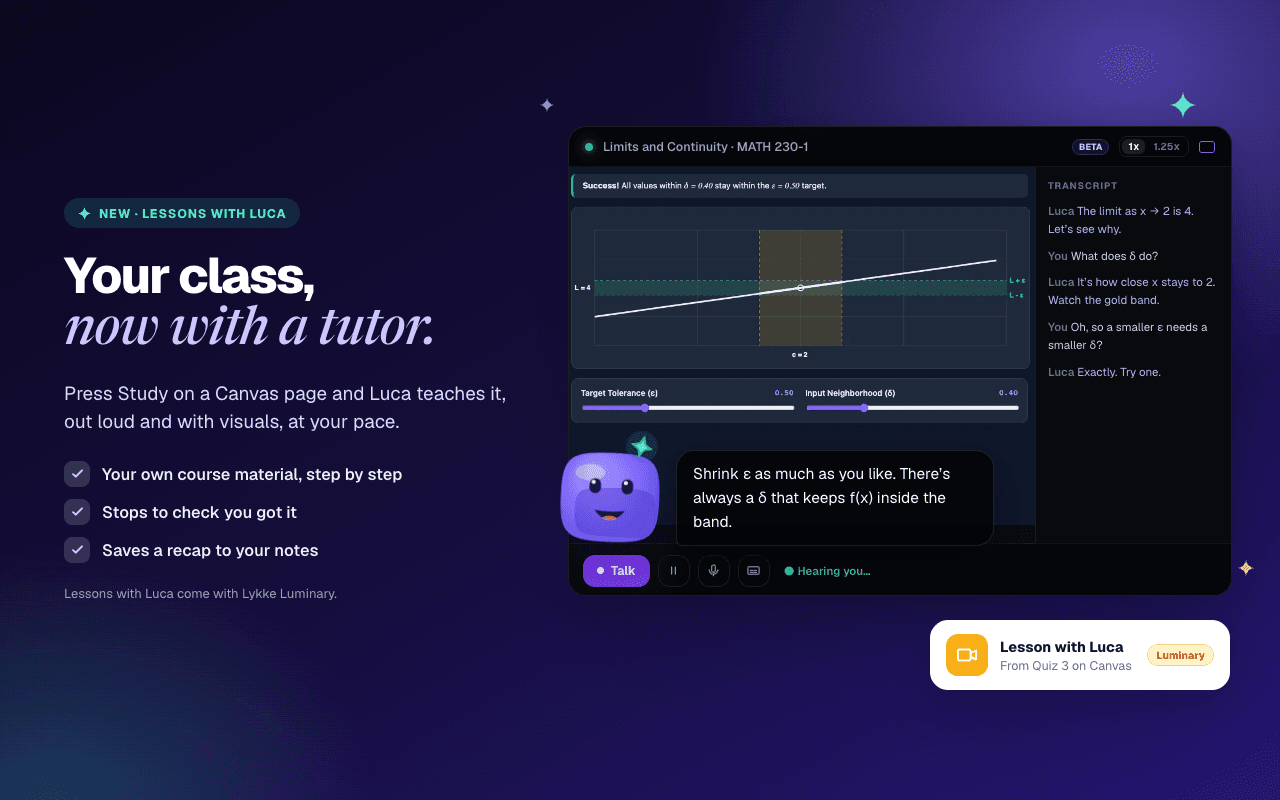
On an assignment, a page, a discussion, a quiz or a file, press “Study this with Lykke” and pick what you need: a quiz, flashcards, a study guide, a mind map, a simulation you can play with, an explanation, or a lesson from Luca, Lykke's video tutor (Luminary). Lykke makes it from that page, starting with anything you highlighted. Nothing from the page leaves your browser until you press Study.
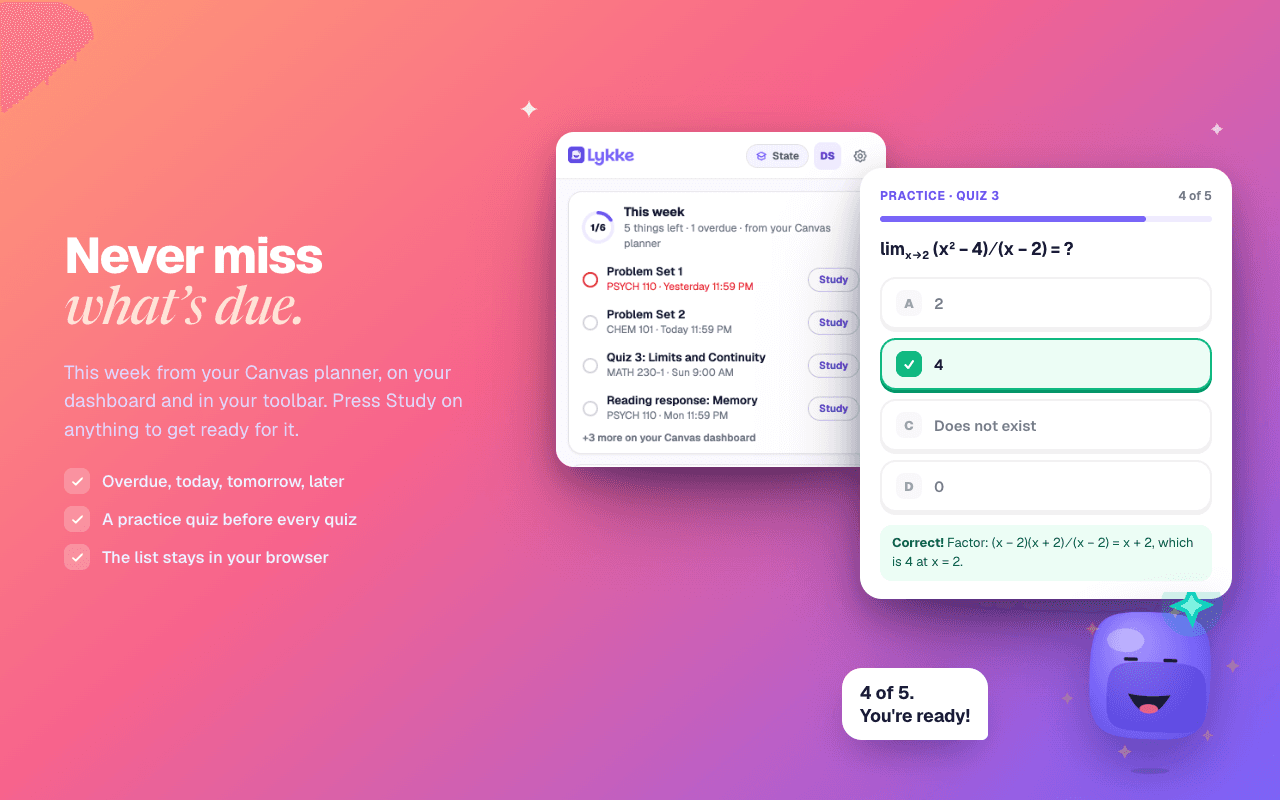
This week: what's due, with a Study button on each item
Your Canvas planner's next seven days, overdue work first, at the top of your Canvas dashboard and in the Chrome toolbar. Press Study on any item to get ready for it: a practice quiz before a quiz, the ideas explained before an assignment. The list stays in your browser. It's a list you open, not an alert.
Your courses, synced into a study space
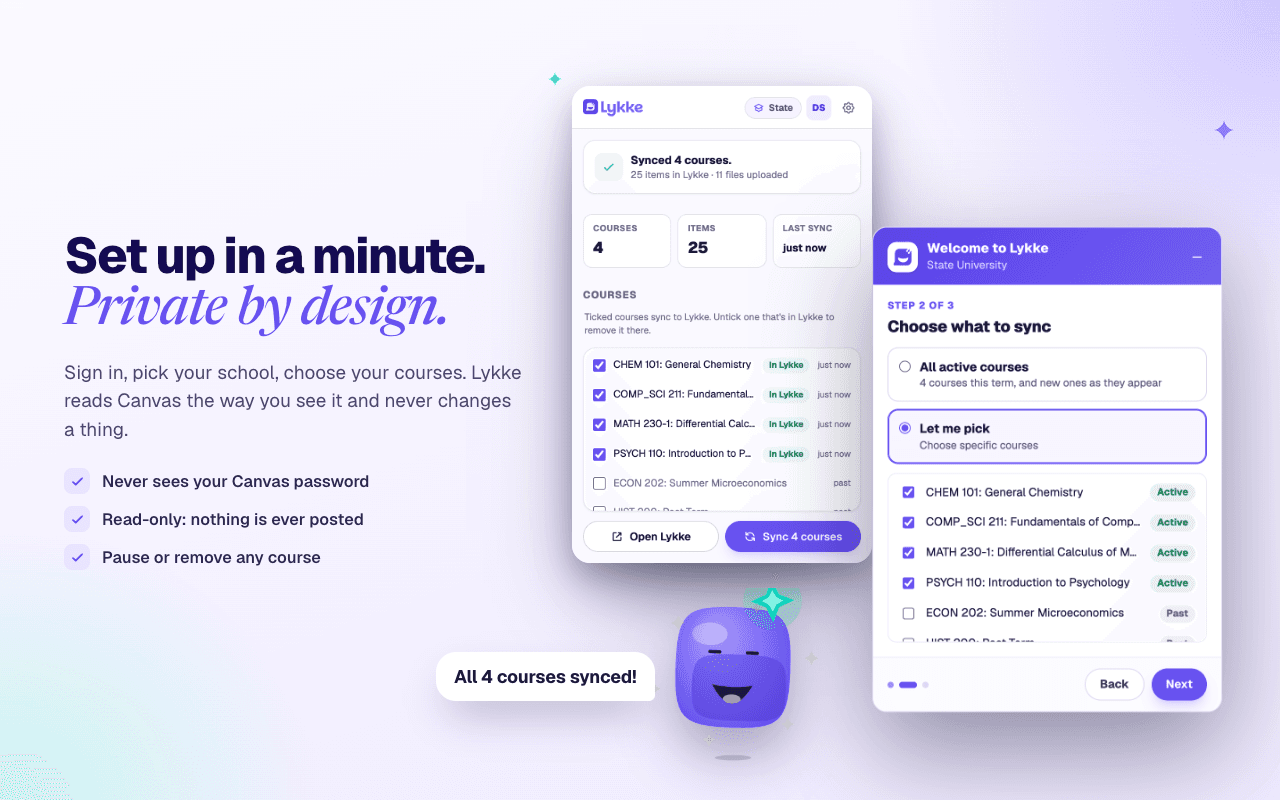
Choose your courses once and Lykke syncs their files, pages, assignments, announcements, modules, class list and calendar to your Lykke account, read-only, and refreshes them when you open Canvas. Every course gets its own study space on getlykke.com, and Ask Lykke answers from it (“What did BIO 201 announce this week?”). Files and the class list you sync are shared with other Lykke students in that Canvas class, including anyone who audits it. Course sync is part of Scholar Plus, and today the free Scholar plan includes it too.
Also
Save any article or your text selection to Lykke notes, save YouTube videos with their transcript, and search your notes from the Chrome toolbar.
Set it up in four steps
- Add Lykke to Chrome and sign in with Google or your email.
- Pick your school and open its Canvas. Sign in to Canvas the way you always do; the Lykke panel appears once you're in.
- Choose the courses to sync and press Sync now.
- Optional: connect Lykke to Meta Muse, ChatGPT or Claude at getlykke.com/mcp and ask “What's due this week?”.
What it reads, and what it never does
From the courses you choose: files, pages, assignments, announcements, modules, the class list and each course's calendar, read with your own Canvas session in your browser. Nothing syncs until you choose courses and agree.
- It never submits an assignment, enters a quiz or exam answer, or posts to a discussion. Its Canvas connection only reads.
- It never asks for, sees or stores your Canvas or school password, and never runs on sign-in pages.
- Lykke's servers never sign in to Canvas on their own.
- The “Study this with Lykke” button never appears while you're taking a quiz, writing a submission or on a grades page.
- The This week list is read in your browser and isn't sent to Lykke. Only an item you press Study on is sent, with any passage you highlighted, and kept with your account for 30 days.
How we know: the house rules cite the code behind each promise.
Does Canvas know? Is it allowed at my school?
Canvas doesn't receive a list of your browser extensions, and Lykke sends nothing to Canvas and changes nothing in your account, so nothing of Lykke's appears there. It reads Canvas with your own session, the way your browser does when you open a page. The Study button and the This week list exist only in your own browser, and the button never appears while you're taking a quiz, writing a submission or on a grades page. A locked-down exam browser doesn't run Chrome extensions at all, Lykke included.
Whether a study tool is allowed in a course is your syllabus's call: read its AI section, and ask your instructor when it doesn't say. What you can tell them about Lykke: it only reads Canvas, it never turns anything in, and it makes things you learn from, like a practice quiz before the real one. Our guide to reading a professor's AI policy has the common policy types.
Schools, browsers and devices
Any school's Canvas works. If your school's address looks like yourschool.instructure.com or canvas.yourschool.edu, or the login page says Canvas, Lykke works there. The school picker lists 250+ schools; if yours isn't in it, open your Canvas and allow Lykke on that one site when Chrome asks. You sign in to Canvas as you always do, single sign-on included; the extension waits and never runs on sign-in pages.
It runs in Chrome 120 or newer on a computer: Windows, Mac, Linux and ChromeOS, so a Chromebook works. Edge, Brave and Arc install it from the Chrome Web Store too. There is no Firefox or Safari version. Phones and tablets can't add Chrome extensions: on an iPhone or iPad the Lykke app has your notes, flashcards and courses, and getlykke.com/extension sends the extension link to your computer.
Can I connect ChatGPT, Claude or Meta Muse to my Canvas courses?
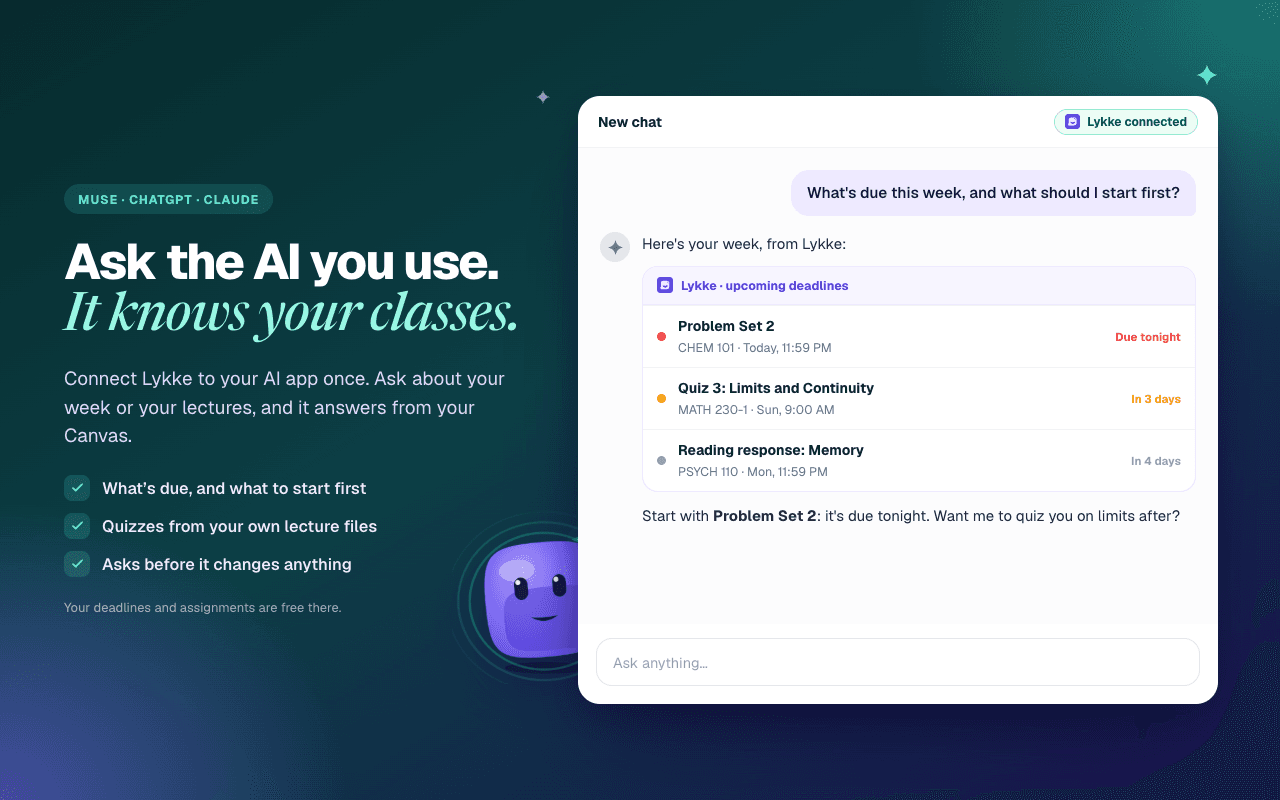
Yes, through Lykke, and without a Canvas API token. The extension syncs the courses you choose to your Lykke account, read-only. Connect Lykke to Muse, ChatGPT or Claude, then ask:
- “What's due this week?”
- “Quiz me on my last lecture.”
- “Make a study guide for my next exam.”
Any Lykke account can connect. On the free plan your assistant sees your classes, deadlines and assignments and can hand you a Google Calendar link; Scholar Plus or Luminary adds your courses, notes, files and flashcards, and a new account can try every tool free for 7 days. Most other Canvas MCP servers ask you to create a Canvas access token and paste it into a config file. Lykke doesn't: the extension reads with the Canvas session you already have, and your AI app signs in to Lykke. Connected AIs can read your Canvas data and have no way to write to it.
What it costs
The extension is free to add, and This week and Study this with Lykke work on every plan (a lesson with Luca, the video tutor, is part of Luminary). Syncing whole courses into your Lykke account is part of Scholar Plus, $6.99 a month or $4.99 a month billed yearly, or 7 free days for each friend who joins, and today the free Scholar plan includes it too. You can try Luminary free for 7 days, and it includes everything in Scholar Plus. Scholar stays free. Plans in full: pricing.
Remove it, or remove what you synced
Remove the extension from Chrome like any other (chrome://extensions). To delete what it synced, open Lykke, then Settings → Canvas, and remove one course or all your Canvas data: your files from those courses, your place in their classes and everything imported. Canvas itself isn't changed. The long version is what it syncs and what it never does; every permission is in the Chrome extension privacy policy.