From the free course Intro to Python Fundamentals on Lykke
Technical Requirements and the Development Environment
Key concepts: JavaScript requirements · Integrated Development Environment (IDE) · Code Editor · Console and Output
Covers the essential browser settings and the integrated development environment (IDE) used throughout the course.
Technical Requirements and the Development Environment
The transition from a passive consumer of technology to an active creator begins with the establishment of a robust Development Environment. In the context of modern computer science education—specifically within the Khan Academy "Client Challenge" framework—this environment is not merely a text box, but a sophisticated, browser-based Integrated Development Environment (IDE). Understanding the technical prerequisites and the internal mechanics of this environment is essential for minimizing "environmental friction," allowing the programmer to focus entirely on algorithmic logic and computational thinking.
The JavaScript Prerequisite: The Engine of Interactivity
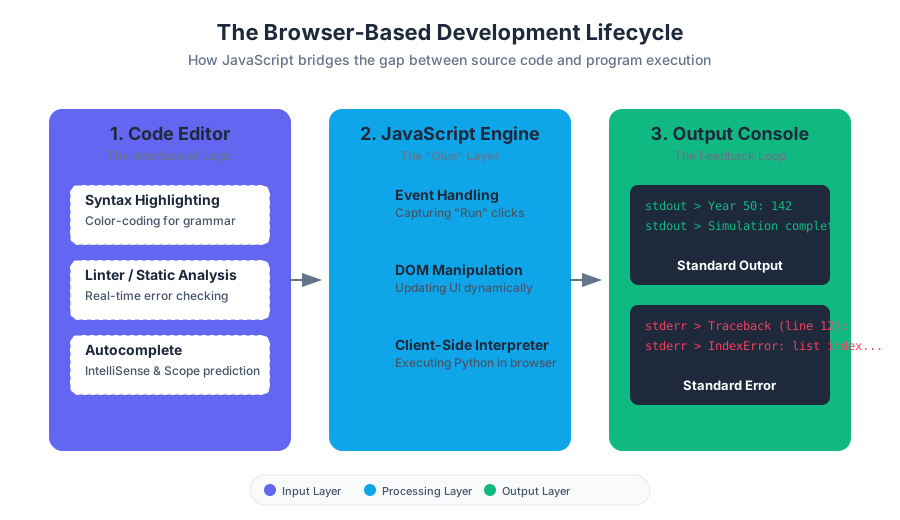
The primary technical requirement for modern web-based programming is the activation of JavaScript within the client's browser. While the learner is writing Python code, the platform itself—the editor, the real-time error checker, and the output console—is constructed using a complex stack of JavaScript frameworks.
Why JavaScript Matters
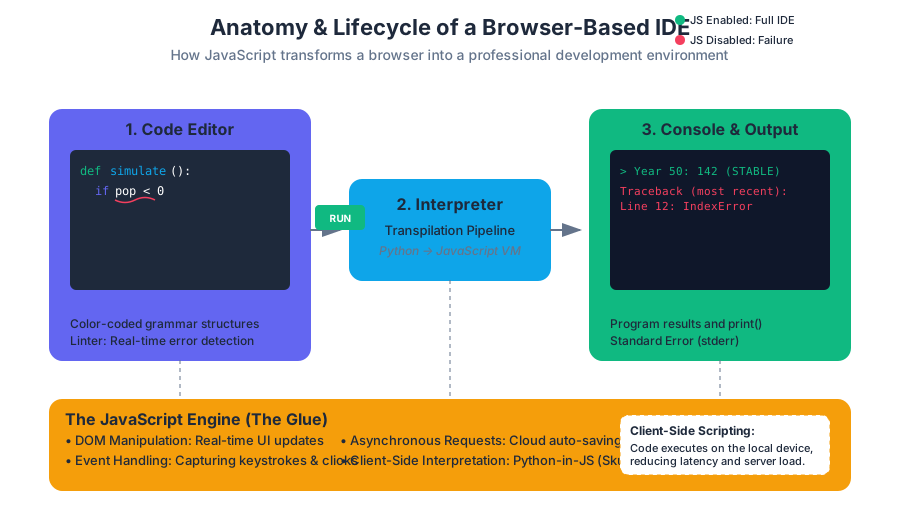
JavaScript serves as the "glue" between the user's input and the server's response. In a browser-based IDE, JavaScript handles:
- DOM Manipulation: Updating the interface dynamically as the user types.
- Event Handling: Capturing keystrokes, mouse clicks on the "Run" button, and scroll events.
- Asynchronous Requests: Saving code progress to the cloud without refreshing the page.
- Client-Side Interpretation: Many modern platforms use JavaScript-based interpreters (like Skulpt or Pyodide) to run Python code directly in the browser, reducing latency and server load.
Definition: Client-Side Scripting Client-side scripting refers to the execution of scripts, such as JavaScript, on the user's local device rather than on the web server. This allows for immediate feedback and highly interactive user interfaces, which are critical for coding environments.
| Requirement State | Impact on IDE Functionality | User Experience |
|---|---|---|
| JavaScript Enabled | Full access to editor, console, and interactive simulations. | Fluid, real-time feedback and code execution. |
| JavaScript Disabled | Total failure of the IDE interface; "Client Challenge" guide inaccessible. | Static error message: "Please enable JavaScript to proceed." |
| Partial Block (NoScript) | Broken UI elements; syntax highlighting may fail; "Run" button unresponsive. | Frustrating, intermittent failures and data loss. |
Anatomy of the Integrated Development Environment (IDE)
An Integrated Development Environment (IDE) is a software suite that consolidates the basic tools required to write and test software. For the beginner, the IDE simplifies the complex toolchain of compilers, linkers, and debuggers into a unified interface.
The Code Editor: The Interface of Logic
The Code Editor is a specialized text editor designed for writing source code. Unlike a standard word processor, it treats text as a structured hierarchy of instructions.
- Syntax Highlighting: The editor parses the code in real-time and applies color-coding based on the language's grammar. For example, Python keywords like
if,while, anddefappear in one color, while strings and integers appear in others. This reduces cognitive load by allowing the brain to recognize patterns quickly. - Linters and Static Analysis: As you type, the editor performs "background checks." If you forget a colon at the end of a
forloop, a red underline (often called a "squiggle") appears. This is the linter identifying a syntax error before the code is even executed. - Autocomplete (IntelliSense): The editor predicts the variable or function name you are typing based on the current Scope and the libraries imported.
The Console and Output
The Console is the terminal window where the program "speaks" back to the user. It serves two primary roles:
- Standard Output (stdout): Displays text generated by
print()statements. - Standard Error (stderr): Displays Tracebacks—detailed reports of why a program crashed, including the line number and the type of error (e.g.,
IndexError,TypeError).
Implementation: The Execution Lifecycle
When a user clicks the Run Button, a multi-stage pipeline is triggered. In a browser-based Python environment, this often involves transpilation or a virtual machine (VM) implementation.
First Code Block: Low-Level Logic Simulation
The following Python code demonstrates a non-trivial simulation of a population dynamic, a common pattern in the "Client Challenge" curriculum. It utilizes loops, conditional logic, and state mutation.
import random

def simulate_population(initial_pop, growth_rate, years, catastrophe_chance):
    """
    Simulates population growth with stochastic interference.
    Demonstrates state management and loop control flow.
    """
    current_pop = initial_pop
    history = []

    for year in range(1, years + 1):
        # Calculate growth
        births = int(current_pop * growth_rate)
        current_pop += births

        # Stochastic event: Catastrophe
        if random.random() < catastrophe_chance:
            loss = int(current_pop * 0.5)
            current_pop -= loss
            event = "CATASTROPHE"
        else:
            event = "STABLE"

        history.append({
            "year": year,
            "population": current_pop,
            "status": event
        })

        # Exit condition: Extinction
        if current_pop <= 0:
            print(f"Extinction reached at year {year}")
            break

    return history

# Execution call
results = simulate_population(100, 0.1, 50, 0.05)
for entry in results[-5:]: # View last 5 years
    print(f"Year {entry['year']}: {entry['population']} ({entry['status']})")
Second Code Block: Algorithmic Derivation (Pseudocode)
To understand what the IDE is doing behind the scenes, we can look at the Loop Design Pattern used in the simulation above.
ALGORITHM: StochasticPopulationGrowth
INPUT: P (initial), r (rate), t (time), c (catastrophe probability)
OUTPUT: List of population states

BEGIN
    SET current_P = P
    CREATE empty list HISTORY

    FOR each year from 1 to t:
        COMPUTE births = current_P * r
        INCREMENT current_P BY births

        GENERATE random_val between 0 and 1
        IF random_val < c THEN:
            DECREMENT current_P BY (current_P * 0.5)
            SET status = "CATASTROPHE"
        ELSE:
            SET status = "STABLE"
        ENDIF

        APPEND {year, current_P, status} TO HISTORY

        IF current_P <= 0 THEN:
            EXIT LOOP
        ENDIF
    ENDFOR

    RETURN HISTORY
END
IDE Component Comparison
Programmers often choose their environment based on the balance between "weight" (resource usage) and "features."
| Feature | Browser-Based IDE (Khan Academy) | Local IDE (VS Code / PyCharm) | Professional Command Line (Vim/Tmux) |
|---|---|---|---|
| Setup Complexity | Zero (Requires only a browser) | Moderate (Requires Python install) | High (Requires config files) |
| Execution Context | Sandboxed (Safe, limited access) | Local System (Full file access) | Local/Remote Server |
| Collaboration | High (Spin-offs, shared URLs) | Moderate (Git integration) | High (SSH/Shared servers) |
| Offline Access | No | Yes | Yes |
Advanced Concepts: State, Scope, and Debugging
The development environment is responsible for tracking the State of the program—the current value of all variables at a specific moment in time.
Computational Thinking: Sequence and State
Computers execute instructions in a Sequence. However, the outcome of an instruction often depends on the current State.
- Variables act as containers for state.
- Type Casting (e.g., converting a string
"10"to an integer10) is a common requirement when handling user input from the console.
Debugging and the "Mental Model"
Debugging is the process of reconciling the computer's actual behavior with the programmer's Mental Model. The IDE assists this through:
- Breakpoints: Pausing execution at a specific line to inspect variables.
- Step-through: Executing code one line at a time.
- Watch Expressions: Monitoring a specific variable's value as it changes across loops.
The Golden Rule of Debugging If the output is not what you expected, your mental model of the state is incorrect. Use
print()statements or the IDE's debugger to expose the "hidden" state of the machine.
Third Code Block: Environment Configuration (JSON)
In professional environments, the IDE itself is configured via code. Below is a representation of how an IDE's settings.json might define the Python environment and linter rules.
{
    "python.pythonPath": "/usr/local/bin/python3",
    "editor.fontSize": 14,
    "editor.formatOnSave": true,
    "python.linting.enabled": true,
    "python.linting.pylintEnabled": true,
    "editor.tokenColorCustomizations": {
        "comments": "#608b4e",
        "functions": "#dcdcaa",
        "keywords": "#569cd6"
    },
    "terminal.integrated.shell.osx": "/bin/zsh"
}
The "Spin-off" Mechanism: Collaborative Development
A unique feature of the Khan Academy development environment is the Spin-off. This is a functional implementation of Forking in version control.
- Original Project: The "Master" version of a challenge or project.
- Spin-off: A personal copy saved to the learner's profile.
- Persistence: Changes made in a spin-off do not affect the original, allowing for "sandbox" experimentation.
This mirrors professional workflows where developers "fork" a repository on GitHub to propose changes or build new features without risking the stability of the main codebase.
Common Pitfalls in the Development Environment
Even with a powerful IDE, learners frequently encounter specific "environmental" hurdles:
- Indentation Errors: Python uses whitespace to define scope. A single space or tab out of alignment will cause a
IndentationError. Modern IDEs help by showing "indentation guides" (vertical lines). - Global vs. Local Scope: Defining a variable inside a function (Local) and trying to access it outside (Global) is a common source of
NameError. - Infinite Loops: A
whileloop without a proper exit condition will hang the browser. The IDE usually has a "timeout" mechanism to kill scripts that run for too long. - Case Sensitivity: Python treats
myVariableandmyvariableas two completely different entities.
| Error Type | Cause | IDE Feedback |
|---|---|---|
| Syntax Error | Violating the rules of the language (e.g., missing parenthesis). | Red underlines; program won't start. |
| Runtime Error | Valid code that tries to do something impossible (e.g., divide by zero). | Traceback in the console during execution. |
| Logical Error | Code runs perfectly but produces the wrong result. | No error message; requires manual debugging. |
Summary of Technical Workflow
The journey from a blank file to a working program follows a predictable pipeline within the IDE:
- Initialization: Ensure JavaScript is enabled and the environment loads.
- Drafting: Write code in the editor, utilizing syntax highlighting and autocomplete.
- Static Analysis: Address any linter warnings or syntax errors highlighted by the IDE.
- Execution: Click "Run" to pass the code to the interpreter.
- Observation: Analyze the output in the console.
- Iteration: If a runtime or logical error occurs, modify the code and repeat from step 4.
- Persistence: Save the work as a "Spin-off" for future refinement.
Conclusion: The IDE as a Force Multiplier
The development environment is more than a tool; it is a partner in the creative process. By automating the mundane aspects of programming—such as checking for typos, managing file paths, and formatting text—the IDE allows the programmer to operate at a higher level of abstraction. Whether you are building a simple "Hello World" or a complex population simulation, mastering your environment is the first step toward mastering the machine.
Source Materials
Study Intro to Python Fundamentals on Lykke
This course page is free to open: signed out, you can read its first two sections, and signing in, on any plan, opens the rest. The free Lykke Chrome extension syncs your own Canvas courses, so ChatGPT, Claude and Muse can answer from your classes and deadlines. It only reads Canvas.
Add the free extensionSign in to open every sectionAll sections of Intro to Python Fundamentals · Browse more course pages